Jupyter on CGD Systems
How to run JupyterLab on a CGD server and access it from a local browser via an SSH tunnel.
Prerequisites
- A working conda (or mamba) environment on the CGD system with
jupyterlabinstalled. - VPN access if connecting from outside the UCAR network.
Overview
- If remote: connect to VPN
- SSH to a CGD server (magnolia, topaz, andre, thorodin, etc.)
- Activate your conda environment and navigate to your working directory
- Start the Jupyter server
- Open an SSH tunnel from your local machine to the server
- Open JupyterLab in your local browser
Step-by-Step
Terminal 1 — on the CGD serverssh [email protected]
conda activate your_environment
cd /your/code/repository
jupyter lab --port=8899 --no-browser
Port note: The default Jupyter port is 8888, but it is often already in use. Port 8899 is a convenient alternative — just pick any unused port and use it consistently in both commands.
Terminal 2 — on your local machine
ssh -N -f -L 8899:localhost:8899 [email protected]Navigate to:
localhost:8899You will likely see an authentication page asking for a token:
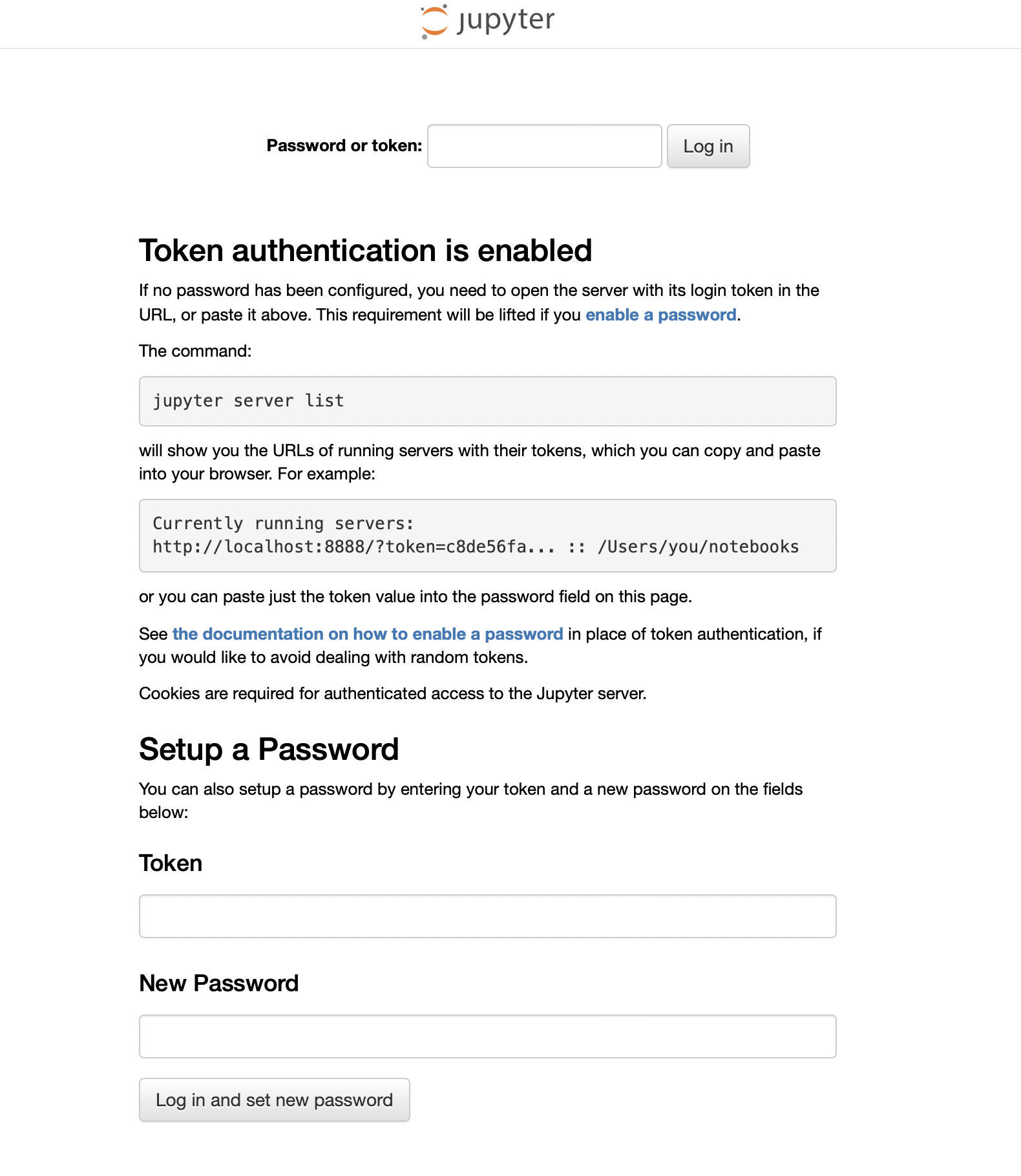
Go back to Terminal 1 (where the Jupyter server is running) to find the token. The output will look something like this:
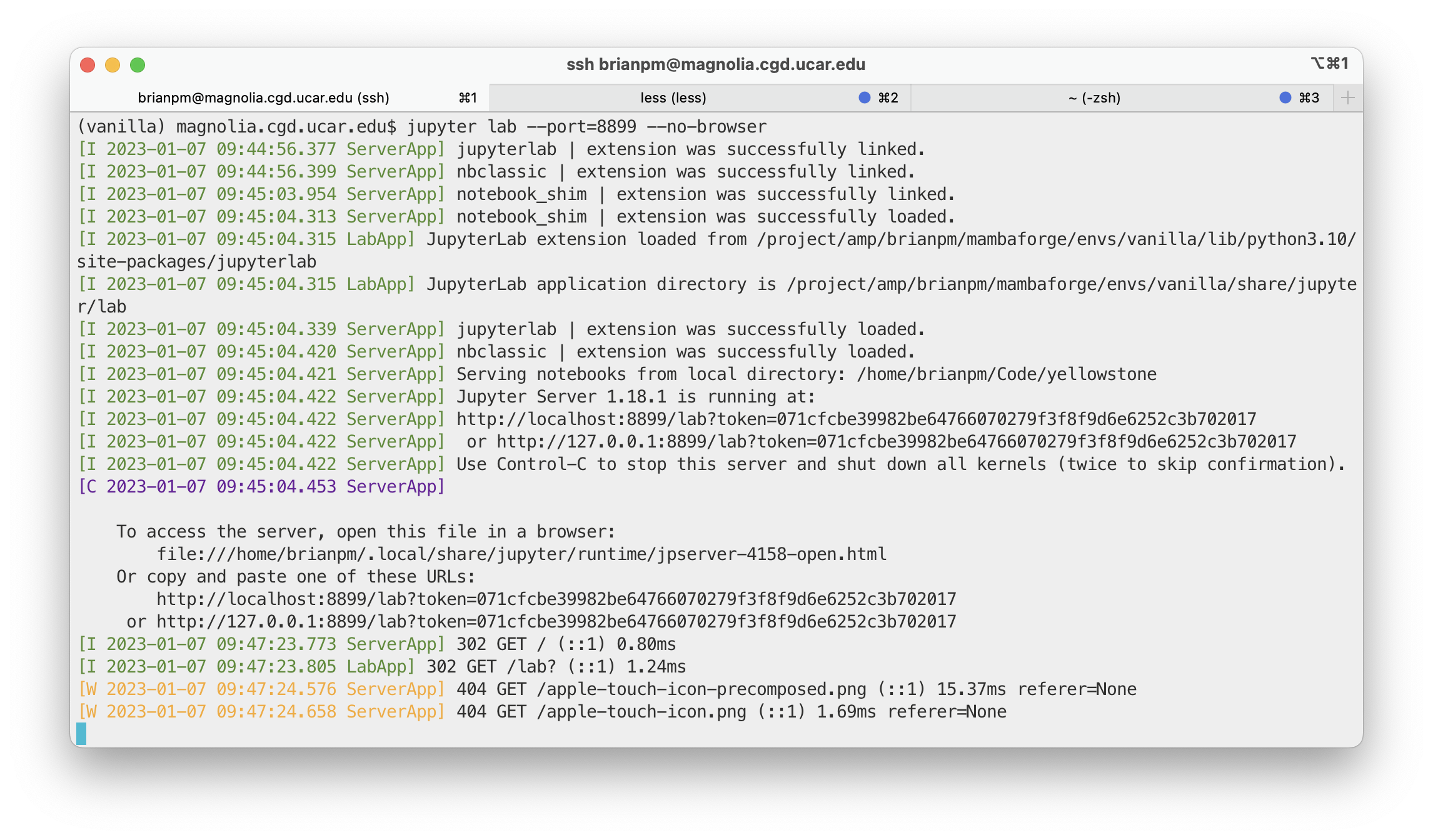
Copy the token and paste it into the browser field. JupyterLab will open. Leave both terminal sessions running while you work.
Shutting Down
In JupyterLab, use File > Shut Down to stop the server, or press Ctrl+C in Terminal 1 and confirm when prompted.
To close the SSH tunnel, run the following in any local terminal:
ps aux | grep 8899
kill -9 [PID]